Showing posts with label Windows 8. Show all posts

Microsoft Releases Windows 8.1 Update

The long awaited Windows 8.1 upgrade is available for download starting today, October 14th. The update is free for current owners of Windows 8. Users will just need to go to Windows Store app to find it.

Here are the cosmetic changes on Windows 8.1:


  • Start Button is back on the desktop mode. Now users can click or tap tiles to open programs. Pressing the start button continuously will launch the Control Panel. 
  • Users can now boot directly to desktop mode.
  • The onscreen keyboard now includes the ability to type punctuation marks or numbers by swiping up or away from certain keys on the standard QWERTY keyboard layout. 
  • Users can now use gesture enabled app to get response. You can wave your hands in front of a web camera to get a response or to flip a page on a hands free mode of an ebook. 
  • Users can now to quickly organize tiles. You can tap and hold Windows tiles with your finger to move them. Another couple taps will allow you to resize them in one of four sizes.
  • Finding all your apps takes just a swipe up on your start screen, as long as you don't do it from beyond the bottom edge.
  • Now app updates will run on the background. It will no longer reminding users to go to the Windows Store.
  • Home screen will now fit on the portrait mode on smaller tablet.
  • Users can now answer Skype or take photos from a locked screen without having to login.
  • In Windows 8.1, users can now run up to 4 apps at once side by side.
  • Multiple search result can now be accessed while typing on the tile-based start screen.
  • Hotmail or Outlook.com users now have the capability to have folders on the left hand side for updates from social network sites like Facebook, messages from favorite contacts and newsletters.
  • Users is no longer limited to 10 open tabs in tile version of Internet Explorer.

Windows 8.1 Gets Its Start Button

Microsoft is bringing back the Start button to Windows 8.1 in the left-hand corner of the operating system. The update will be freely available for current Windows 8 users beginning June 26, 2013 via the Windows Store. The Metro style Start screen will remain the same and now it offers greater customization. Users can now select multiple apps all at once, re-size them, uninstall them, or rearrange them.

The following are new features introduce with Windows 8.1 update:

1. Tiles - the new Start screen will feature a variety of tile sizes similar to the current version of Windows phone.

2. Windows Store - the new store will offer details free apps, new releases, and top picks on the homepage.

3. Split Screen - no users can view 2 different apps side by side and re-size the app to any size, share the screen between two apps, or have up to 3 different apps. If users have multiple display, it can have different Windows Store apps on all the display screens.

4. Internet Explorer 11 - new version of Internet Explorer will offer better touch performance, faster loading time, and adjust the appearance to show the address bar. Now, it can have as many as tabs just like the previous IE 10.

5. SkyDrive - now the Sky Drive app gives users the ability to access their files that are on the device or in the cloud while offline. It also offers the ability to back up the entire device to SkyDrive.

6. Control Panel - the updated Windows 8.1 will give users to access all the settings without having to go to Control Panel on the Desktop.

7. Search - the Search feature will provide global search powered by Bing. If users are offline, the search query  will display the local result.

8. Sync - it offers better synchronization and sharing among the users' devices.

9. New Apps - new Sound Recorder, Calculator, and Alarm apps are provided.

10. Kiosk Mode - it features a lock down mode for users' devices that will prevent to be accessible when surfing the Internet.

11. Pictures Frame and Camera - for tablet users, it can turn the Windows 8.1 into picture frame and it can access the camera when the screen is locked.


How to Fix Missing Metro IE in Windows 8

If you installed other Internet browsers in your Windows 8 and set it as default browser, your Windows 8 will automatically replaces Internet Explorer Metro with the desktop version of Internet Explorer 10 in your Start Screen. To fix this issue, you just simply need to set Internet Explorer as your default browser in your Windows 8.


  1. In your Metro, press the Windows key on your keyboard to go to Desktop or click Desktop in Metro
  2. Launch your Internet Explorer 
  3. Select Tools then Internet Options 
  4. Click on the Programs tab and click on Set associations button
  5. Check the Select All option then click on the Save button
If the above steps did not fix your Metro IE, then you just need to set Internet Explorer as your default web browser.

  1. Press your Windows key and X then select Control Panel 
  2. Select Default Programs then Set program access and computer defaults

Windows 8 Find Applications Shortcut

To find all your applications in Windows 8, you either,

1. Right click anywhere Start Screen and select All Apps

or

2. Press Windows key and Q at the same time


Windows 8 Start Menu Short Cut

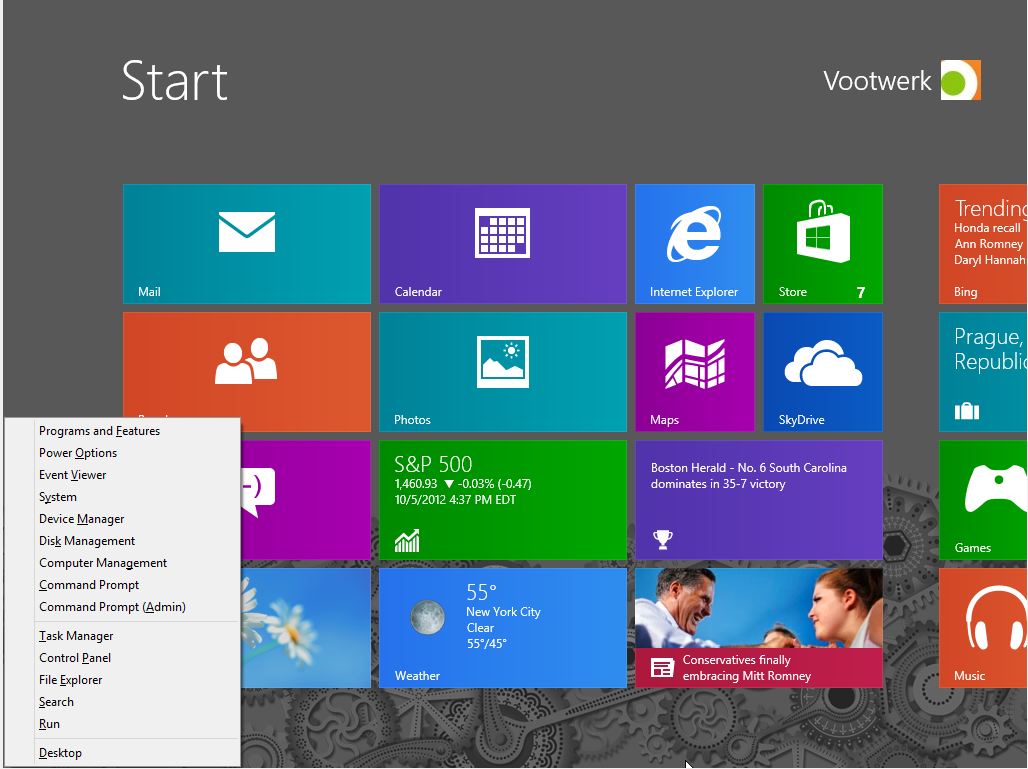
Basic Start Menu in Windows 8 can be accessed by hovering your mouse to the bottom left corner of your screen in Desktop menu and then right click. It can also be accessed by swiping form the rights side of a touch screen.

The shortcut for basic Start Menu is by pressing your Windows key and X key at the same time.