How to Remove A Mailbox in Exchange 2010 With One or More Mailboxes Error

If you're encountering the following error even after you have removed all the user account mailboxes , then you need to follow the solution steps below. Please note that the solution below is not for removing the last database on your Exchange 2010.

Error:

This mailbox database contains one or more mailboxes, mailbox plans, archive mailboxes, or arbitration mailboxes. To get a list of all mailboxes in this database, run the command Get-Mailbox -Database <Database ID>. To get a list of all mailbox plans in this database, run the command Get-MailboxPlan. To get a list of archive mailboxes in this database, run the command Get-Mailbox -Database <Database ID> -Archive. To get a list of all arbitration mailboxes in this database, run the command Get-Mailbox -Database <Database ID> -Arbitration. To disable a non-arbitration mailbox so that you can delete the mailbox database, run the command Disable-Mailbox <Mailbox ID>. To disable an archive mailbox so you can delete the mailbox database, run the command Disable-Mailbox <Mailbox ID> -Archive. Arbitration mailboxes should be moved to another server; to do this, run the command New-MoveRequest <parameters>. If this is the last server in the organization, run the command Disable-Mailbox <Mailbox ID> -ArbitrationDisableLastArbitrationMailboxAllowed to disable the arbitration mailbox. Mailbox plans should be moved to another server; to do this, run the command Set-MailboxPlan <MailboxPlan ID> -Database <Database ID>.


Solutions:

  1. Launch Exchange Management Shell
  2. Check for user account mailbox Archive with this command,
 Get-Mailbox | where {$_.ArchiveDatabase -eq "Your Database"}

if there is any user account is still using the intended database to be removed with Archive enabled, then you need to move it to another database first.

Once you determined there are no more user mailboxes using the the database to be removed then follow these next steps.

  1. Check for Soft Deleted mailboxes by running this command
 Get-mailboxstatistics -database "Your Database" |fl

This will list all the mailboxes that are disconnected from the database and labeled as SoftDeleted. If it shows a list of the mailboxes in SoftDeleted then run the next command, otherwise you can skip it.

      2. To permanently delete all SoftDeleted mailboxes, run this command

Get-MailboxStatistics -Database "Your Database" | where {$_.DisconnectReason -eq "SoftDeleted"} | foreach {Remove-StoreMailbox -Database $_.database -Identity $_.mailboxguid -MailboxState SoftDeleted}

Unfortunately, you will have to acknowledge each of the mailboxes to be permanently deleted from the database. Once all the SoftDeleted mailboxes are confirmed, you need to follow the next step.

      3. Check for mailbox Arbitration with this command


Get-Mailbox -Database 'Your Database'-Arbitration

It should list the Arbitration mailboxes that contributed to the initial error. You will need to move them to another database with these next steps.

     4. Set-AdServerSettings -ViewEntireForest $True

     5. Get-mailbox –Arbitration –Database "Your Database"| new-MoveRequest –targetdatabase "Your Other Database"

     6. Get-moverequest

It will display whether the move request has been completed.

    7. Get-moverequest | Remove-moverequest

    8. Remove-mailboxdatabase –identity "Your Databse"


Connect to Exchange Online Using Remote PowerShell

Remote Power Shell allows you to connect to your Exchange Online (Office 365) to manage your settings. It’s a simple four-step process.

1. On your local computer, open Windows PowerShell with elevated permission (Run as administrator) and run the following command.

           
    $UserCredential = Get-Credential

    In the Windows PowerShell Credential Request dialog box, type your Exchange Online user name and password, and then click OK.


2. Then run the following command.

     $Session = New-PSSession -ConfigurationName Microsoft.Exchange -ConnectionUri https://outlook.office365.com/powershell-liveid/ -Credential $UserCredential -Authentication Basic -AllowRedirection

3. Next, run the following command.

    Set-ExecutionPolicy RemoteSigned

Select YES


4. Run the next command.

     Import-PSSession $Session


To disconnect your session, run 

Remove-PSSession $Session

Microsoft Rebranding SkyDrive to OneDrive


Microsoft will soon change its cloud storage name from SkyDrive to OneDrive. That's the only thing that will change. In an effort to boost the service, OneDrive storage can be increased to 15 gigabytes of capacity via referral methods from its current 7 gigabytes of storage  Users who refer OneDrive will get 500 megabytes per referral, up to 10. Users who link their phone's cameras roll to OneDrive will get additional 3 gigabytes of storage space.

Microsoft Releases Windows 8.1 Update

The long awaited Windows 8.1 upgrade is available for download starting today, October 14th. The update is free for current owners of Windows 8. Users will just need to go to Windows Store app to find it.

Here are the cosmetic changes on Windows 8.1:


  • Start Button is back on the desktop mode. Now users can click or tap tiles to open programs. Pressing the start button continuously will launch the Control Panel. 
  • Users can now boot directly to desktop mode.
  • The onscreen keyboard now includes the ability to type punctuation marks or numbers by swiping up or away from certain keys on the standard QWERTY keyboard layout. 
  • Users can now use gesture enabled app to get response. You can wave your hands in front of a web camera to get a response or to flip a page on a hands free mode of an ebook. 
  • Users can now to quickly organize tiles. You can tap and hold Windows tiles with your finger to move them. Another couple taps will allow you to resize them in one of four sizes.
  • Finding all your apps takes just a swipe up on your start screen, as long as you don't do it from beyond the bottom edge.
  • Now app updates will run on the background. It will no longer reminding users to go to the Windows Store.
  • Home screen will now fit on the portrait mode on smaller tablet.
  • Users can now answer Skype or take photos from a locked screen without having to login.
  • In Windows 8.1, users can now run up to 4 apps at once side by side.
  • Multiple search result can now be accessed while typing on the tile-based start screen.
  • Hotmail or Outlook.com users now have the capability to have folders on the left hand side for updates from social network sites like Facebook, messages from favorite contacts and newsletters.
  • Users is no longer limited to 10 open tabs in tile version of Internet Explorer.

How to Resize VirtualBox Disk Image in Windows

The procedure to resize or expand VirtualBox disk image (VDI) in Windows will take the following steps:

1. Backup your VDI disk image
2. Run elevated privilege Command Prompt
3. Change the directory to where your VirtualBox is installed. It usually located on C:\Program Files\Oracle\VirtualBox\
4. Run this command, VboxManage.exe modifyhd "YOUR_HARD_DISK.vdi" --resize SIZE_IN_MB

Example: C:\Program Files\Oracle\VirtualBox\VboxManage.exe modifyhd "C:\Users\Vootwerk\VirtualBox VMs\Windows 8 Enterprise\Windows 8 Enterprise.vdi" --resize 40960

5. Once VDI disk image is resize, you will then need to extend the partition on your Windows VM to use the newly unallocated disk space.

Windows 8.1 Gets Its Start Button

Microsoft is bringing back the Start button to Windows 8.1 in the left-hand corner of the operating system. The update will be freely available for current Windows 8 users beginning June 26, 2013 via the Windows Store. The Metro style Start screen will remain the same and now it offers greater customization. Users can now select multiple apps all at once, re-size them, uninstall them, or rearrange them.

The following are new features introduce with Windows 8.1 update:

1. Tiles - the new Start screen will feature a variety of tile sizes similar to the current version of Windows phone.

2. Windows Store - the new store will offer details free apps, new releases, and top picks on the homepage.

3. Split Screen - no users can view 2 different apps side by side and re-size the app to any size, share the screen between two apps, or have up to 3 different apps. If users have multiple display, it can have different Windows Store apps on all the display screens.

4. Internet Explorer 11 - new version of Internet Explorer will offer better touch performance, faster loading time, and adjust the appearance to show the address bar. Now, it can have as many as tabs just like the previous IE 10.

5. SkyDrive - now the Sky Drive app gives users the ability to access their files that are on the device or in the cloud while offline. It also offers the ability to back up the entire device to SkyDrive.

6. Control Panel - the updated Windows 8.1 will give users to access all the settings without having to go to Control Panel on the Desktop.

7. Search - the Search feature will provide global search powered by Bing. If users are offline, the search query  will display the local result.

8. Sync - it offers better synchronization and sharing among the users' devices.

9. New Apps - new Sound Recorder, Calculator, and Alarm apps are provided.

10. Kiosk Mode - it features a lock down mode for users' devices that will prevent to be accessible when surfing the Internet.

11. Pictures Frame and Camera - for tablet users, it can turn the Windows 8.1 into picture frame and it can access the camera when the screen is locked.


How to Fix Missing Metro IE in Windows 8

If you installed other Internet browsers in your Windows 8 and set it as default browser, your Windows 8 will automatically replaces Internet Explorer Metro with the desktop version of Internet Explorer 10 in your Start Screen. To fix this issue, you just simply need to set Internet Explorer as your default browser in your Windows 8.


  1. In your Metro, press the Windows key on your keyboard to go to Desktop or click Desktop in Metro
  2. Launch your Internet Explorer 
  3. Select Tools then Internet Options 
  4. Click on the Programs tab and click on Set associations button
  5. Check the Select All option then click on the Save button
If the above steps did not fix your Metro IE, then you just need to set Internet Explorer as your default web browser.

  1. Press your Windows key and X then select Control Panel 
  2. Select Default Programs then Set program access and computer defaults

"The message has a digital signature, but it was not validated" Error Message in OWA

Outlook Web App (OWA) does not provide support for digital certificates because it does not include support for S/MIME. If you received an email message that included digital signature, you may see "The message has a digital signature, but it was not validated" error.

To resolve this problem, you can follow these steps:


 1. Click Start, click Run, type Regedit, and then click OK.

2. Locate and then click the following registry subkey:

HKEY_LOCAL_MACHINE\SYSTEM\CurrentControlSet\Services\MSExchangeWEB\OWA

3. On the Edit menu, point to New, and then click DWORD Value.

4. Type CheckEmbeddedSmime, and then press ENTER.

5. Right-click CheckEmbeddedSmime, and then click Modify.

6. In the Edit DWORD Value dialog box, under Base, click Decimal.

7. In the Value data box, type 1, and then click OK.

8. Exit Registry Editor.

"This operation has been cancelled due to restrictions in effect" When Click Link in Outlook Solution #2

The following is another alternative solution when you're receiving error of "This operation has been cancelled due to restriction in effect on this computer" upon clicking hyperlink in your Outlook.


  1. Close your Outlook and any opened browsers in your desktop
  2. Go to elevated Command Prompt (right click "Run as Administrator")
  3. Type in the following Registry Keys in your Command Prompt
REG ADD HKEY_CURRENT_USER\Software\Classes\.htm /ve /d htmlfile /f
REG ADD HKEY_CURRENT_USER\Software\Classes\.html /ve /d htmlfile /f
REG ADD HKEY_CURRENT_USER\Software\Classes\.shtml /ve /d htmlfile /f
REG ADD HKEY_CURRENT_USER\Software\Classes\.xht /ve /d htmlfile /f
REG ADD HKEY_CURRENT_USER\Software\Classes\.xhtml /ve /d htmlfile /f


  4. Launch your Outlook then try to click on the hyperlink

Microsoft Surface Pricing Available Today

Pricing and pre-order of the new Microsoft Surface tablet will be available today. The new Microsoft Surface will be priced in line with Apple's iPad starting at $499. It comes with 32 GB of storage with expansion slot and it's running Windows RT. Surface is pre-loaded Microsoft Office 2013.  Microsoft Surface is also available bundled with Touch Cover accessory for $599 with 32 GB of storage or for $699 for 64 GB version. A version with full running Windows 8 Professional will be available early next year.


McAffee Launched New Data Center Security Suites

McAffee announced four new data center security suites to help secure servers and databases in the data center. The suites offer a unique combination of whitelisting, blacklisting and virtualization technologies for protecting servers and virtual desktops. These solutions provide optimal security for servers and databases in physical, virtualized and cloud-based data centers, with minimal impact on server resources which is a key demand for data centers.
 
The suites offer customers the ability to protect their physical and virtual servers and virtual desktops with a unique combination of technologies in a single solution.

  • McAfee Data Center Security Suite for Server provides a
    complete set of blacklisting, whitelisting, and optimized
    virtualization support capabilities for basic security on servers of
    all types
  • McAfee Data Center Security Suite for Server–Hypervisor Edition
    provides a complete set of blacklisting, whitelisting, and optimized
    virtualization support capabilities for basic security on servers of
    all types and is licensed per Hypervisor
  • McAfee Data Center Security Suite for Virtual Desktop
    Infrastructure
    provides comprehensive security for virtual desktop
    deployments without compromising performance or the user experience
  • McAfee Database Server Protection provides data base activity
    monitoring and vulnerability assessment in a single suite, for all
    major database servers in the data center

Microsoft Sets Windows 8 Upgrade Pricing

Microsoft sets the price for an upgrade to the full version of Windows 8 operating system at $70 for a DVD pack. End users can also have the option to download Windows 8 in digital format on launching date, October 26th, for $40. This offer will expire at the end of January 2013. Computers running Windows XP, Vista and Windows 7 will be able to upgrade to Windows 8. Microsoft has yet to announce the price for full version of Windows 8.

Windows 8 Find Applications Shortcut

To find all your applications in Windows 8, you either,

1. Right click anywhere Start Screen and select All Apps

or

2. Press Windows key and Q at the same time


Windows 8 Start Menu Short Cut

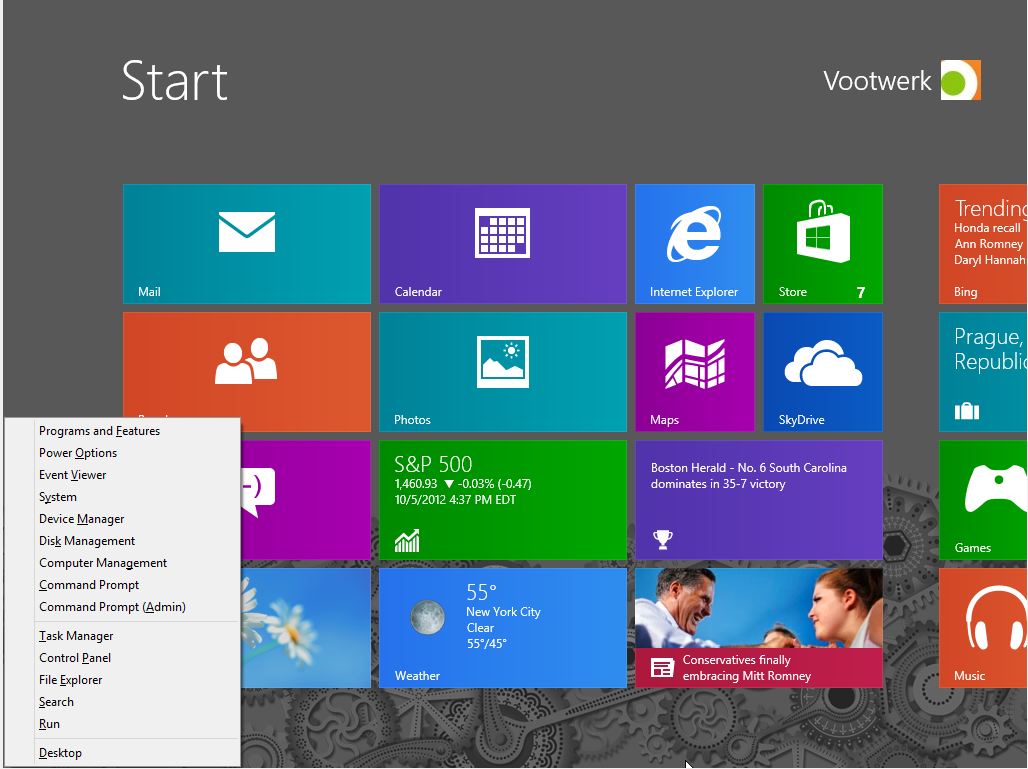
Basic Start Menu in Windows 8 can be accessed by hovering your mouse to the bottom left corner of your screen in Desktop menu and then right click. It can also be accessed by swiping form the rights side of a touch screen.

The shortcut for basic Start Menu is by pressing your Windows key and X key at the same time.


How to Reset Symantec Endpoint Protection Manager Password

You can reset your Symantec Endpoint Protection Manager password by using its resetpass.bat located in your installation directory. The tools is provided with the installation package. If you are unable to find resetpass.bat, your Symantec Endpoint Protection maybe installed on another drive.

To reset the password follow these steps:

  1. On the server where your installed Symantec Endpoint Protection, open the following directory C:\Program Files\Symantec\Symantec Endpoint Protection Manager\Tools or C:\Program Files (86)\Symantec\Symantec Endpoint Protection Manager\Tools
  2.  Double click resetpass.bat and the password will be reset to default credential
  3. Open your Symantec Endpoint Protection Manager
  4. Logon using Admin for both username and password
  5. Be sure to change the password after your successfully login
 Please note: if your account is locked, you may have to wait 15 to 60 minutes before you can try to use resetpass.bat.

Microsoft Announces Windows Server 2012

Microsoft recently has announced the general availability of the next generation of its server operating system, Windows Server 2012. According to Microsoft, Windows Server 2012 is the new world of continuous cloud services, connected devices and big data. The OS is built to deliver Cloud OS. Windows Server 2012 adds new advancements in virtualization, storage, networking and automation. Hundreds of new features can help customers achieve a transformational leap in the speed, scale and power of their data centers and applications.

How to Search Email Address in Active Directory

Once in a while when you try to assign a new email address to a user account, you encountered a specific email address you would like to assign has been taken. In a small Active Directory environment, the task to find an email address is easy, but if what if your environment consisted of thousands of accounts?

Here is the simplest way to find an email address that has already been assigned to a user account.

1. Go to Active Directory User Computer
2. Right click your Domain and select Find
3. Under the drop down menu of Find, select Custom Search
4. Under the drop down menu of In, select Entire Directory
5. Click on the Advanced tab, then type

proxyaddresses=smtp:emailaddress@yourcompany.com 

Note: change 'emailaddress' with email address you'd try to search and replace 'yourcompany.com' with your domain.


Microsoft Offers Free Windows 8 RTM

Two weeks ago Microsoft announced that Windows 8 has reached Release to Manufacture milestone. As promised, Microsoft released the finale version to MSDN and TechNet subscribers. However, 90-day evaluation copy of Windows 8 RTM is also available for everyone to download.

Unlike the versions distributed via TechNet and MSDN to paying subscribers, the evaluation expires after 90 days of use. At that time, Windows 8 blackens the desktop background, displays a persistent notice that the OS is not genuine. Then, Windows 8 shuts down the PC every hour without giving the user a chance to save works in progress. When the evaluation period expires, users will have to replace it with a purchased copy or another operating system, and reinstall all applications, other software and files.

Microsoft Drops "Metro Style" Description

Microsoft has decided to drop the term "Metro Style" or "Microsoft Metro" for its tiled interface of the upcoming official release of Windows 8. The now familiar colorful layout and built for touch-interface will remain, but without a branded name. 

Here’s Microsoft’s official statement:
"We have used Metro style as a code name during the product development cycle across many of our product lines. As we get closer to launch and transition from industry dialog to a broad consumer dialog we will use our commercial names."

Rumor has it  to the reason of sudden description changed is the possibility of legal threats by German retail company, Metro AG. Due to this sudden description change, Microsoft has not had the time to announce a new name. For now it's simply "Windows 8-sytle UI".

Office 2013 Consumer Preview Released

Microsoft's CEO, Steve Balmer, unveiled the next generation of Office suite during a press conference in San Francisco, California. Office 2013 is available for testing in a public Consumer Preview for users of Windows 7 and Windows 8. Office 2013 will be available for both tablet PC and traditional computers.