New Zeus Variant Steals Victim's Banking Information
FBI warns of new Zeus trojan variant called "Gameover". It is being distributed via e-mails claiming that there's a problem with the recipient's bank account. The malware promptly infects the computer and in turn, steals victim's banking information. Unlike the normal Zeus variants however, Gameover then initiates a distributed denial-of-service (DDoS) attack via botnet.

10 Things to Avoid for Weak Passwords
- Password is the same as username or part of the username
- Name of family members, friends or pets.
- Personal information about yourself or family members. This includes information that can be obtained about you quite easily, such as birth date, phone number, vehicle license plate number, street name, apartment/house number etc.
- Consecutive alphabets, numbers or keys on the keyboard. for e.g. abcde, 12345, qwert.
- Dictionary words. Dictionary words with number or character in front or back
- Real word from any language
- Word found in dictionary with number substitution for word look alike. for e.g. Replacing the letter O with number 0. i.e passw0rd.
- Any of the above in reverse sequence
- Any of the above with a number in front or back.
- Empty password or auto login.
How to Find MAC Address in Windows OS
In order to find MAC address of a device on your LAN in the same Subnet is very simple in Windows network environment. You would, however, need at least a known IP address of a PC or device in your network.
Locating the MAC address of a networked computer from Windows:
Locating the MAC address of a networked computer from Windows:
- Click Start -> Run, type cmd and click Ok
- Type ping xxx.xxx.xxx.xxx, replacing xxx.xxx.xxx.xxx with the IP address of the computer who's MAC address you want to retrieve
- After the ping response has finished, type arp -a
- Under Internet Address, locate the IP address you just pinged. In the same line, the corresponding MAC address is listed under Physical Address
Unistalling McAfee Security Center
Sometimes when you purchased a new computer, the vendor pre-installed McAfee Security Center evaluation version. Due to a large number of products installed with McAfee Security
Center, sometimes it is difficult to ensure a complete uninstall just by
using the normal removal procedure. In case McAfee has not uninstalled even after you have removed all other McAfee products, then you would need to perform to following steps:
How to Perform Automatic Uninstall Using the MCPR (McAfee Consumer Products Removal) Tool
In case you fail to remove the McAfee Security Center by using the methods mentioned above, then you can opt for the automatic uninstall option provided by McAfee.
In case, MCPR displays a red colored cross (X) symbol during the cleanup and shows the status as Incomplete Cleanup, then perform the following steps to fix the issue:
- Open My Computer.
- Navigate to McAfee Program Files directory. (For example, C:\Program Files\McAfee.)
- In this directory, open the \Agent\App folder.
- In this folder, locate all files with the .adf extension and delete them.
- Finally, open the Add or Remove Programs window again from Control Panel and select McAfee Security Center to uninstall it.
How to Perform Automatic Uninstall Using the MCPR (McAfee Consumer Products Removal) Tool
In case you fail to remove the McAfee Security Center by using the methods mentioned above, then you can opt for the automatic uninstall option provided by McAfee.
- To perform automatic McAfee removal you can download the MCPR removal tool.
- In the File Download dialog box, select the Save button and save the tool on the Desktop
- Next, close all McAfee programs running on your PC and double-click the MCPR.exe file. (If you are performing the removal on a Vista or Windows 7 system, then, right-click on the file, and select the Run as Administrator option.)
- Next, restart your PC when the removal tool finishes and prompts you to do so.
- All McAfee products will be removed from the system after the computer restarts.
In case, MCPR displays a red colored cross (X) symbol during the cleanup and shows the status as Incomplete Cleanup, then perform the following steps to fix the issue:
- Do not reboot your PC, instead select the View Log button.
- The error usually occurs when the tool is unable to remove certain registry entries. The Log file will identify these registry entries and list them with the description, WINERR RegOpenKeyEx() failed. Error: 5. Make a note of all registry keys listed with this error.
- Next, open Registry Editor by running the Regedit command.
- In the Registry Editor Window navigate to each registry key identified in the log and delete them.
- If the message, Permission is Denied, is displayed when you try a registry key, then do the following:
- Right-click the key you are unable to delete and select Permissions.
- Select the Add button, type Everyone in the text box provided and then, select the OK button.
- Finally, delete the registry key. Perform this task for all registry keys your unable to delete.
- Restart your PC to ensure that MCPR successfully completes the removal process.
Most WiFi Routers Susceptible to Brute Force
According to Stefan Viehböck, an independent security researcher, the configuration of most consumer WiFi routers are susceptible to hacking. This vulnerability only impacted for those users who are using the default simplified method by the manufacturers. This simplified method called WiFi Protected Setup (WPS) which was enabled on nearly
all consumer WiFi access points, including those sold by Cisco/Linksys,
Netgear, Belkin, Buffalo, and D-Link.
There are 3 methods of connection of wireless devices to WPA2 protected access points:
There are 3 methods of connection of wireless devices to WPA2 protected access points:
- Push Button Connect (PBC) requires the user to push a button on the router which allows it to communicate with a client needing configuration. The client attempts to connect and the router simply sends it the security configuration required to communicate.
- Client PIN mode is where the client device supports WPS and has a PIN assigned by the manufacturer. You then login to the router's management interface and enter the PIN to authorize that client to obtain the encryption configuration.
- Router PIN mode allows a client to connect by entering a secret PIN from a label on the router, or from its management interface which authorizes the client to obtain the security configuration details.
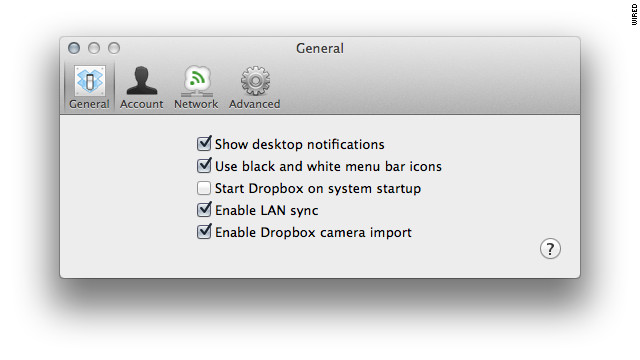
Auto Import Function in Dropbox
US Technology Used For Regime Censorship

